

Getting started
This walkthrough takes ten minutes and covers the essentials: at the end, you will have a table, a kanban view and a public form that writes into it.
1. Create a base
Section titled “1. Create a base”Everything is organized by project: the selector at the top of the sidebar switches projects or creates one. In the sidebar, the + to the right of the filter creates a base. Give it a label — “Ventes” — and, if you like, a description, a color, an icon.
The base becomes a PostgreSQL schema: its physical name (b_t4z56fq_ventes) appears in
the form and in the generated documentation.
2. Create a table and its fields
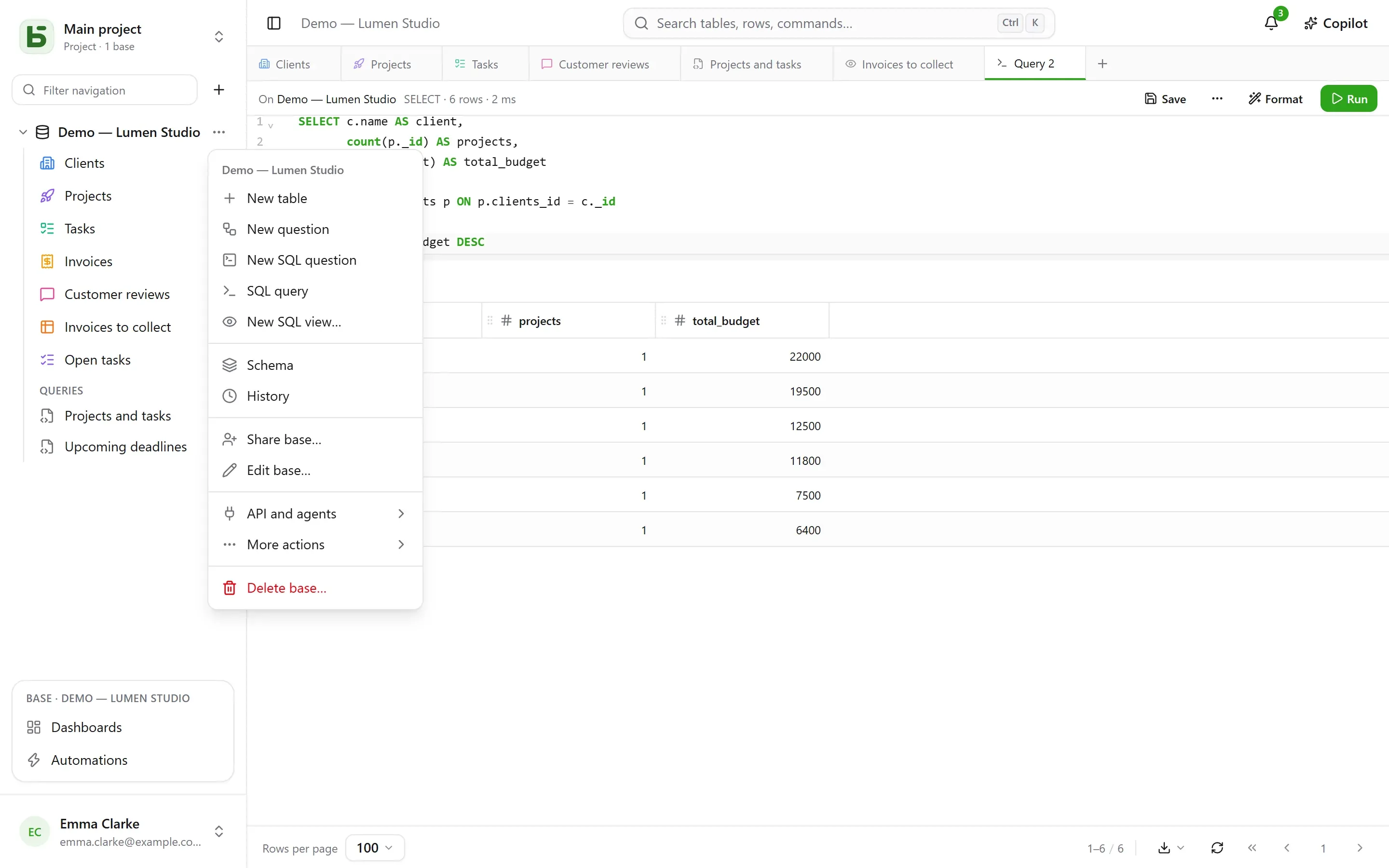
Section titled “2. Create a table and its fields”From the base’s ⋯ menu: New table. Then add its fields from Schema — in that same menu — and its Field button:
| Field | Type |
|---|---|
| Nom | Short text |
| Statut | Single select — Nouveau, Qualifié, Gagné, Perdu |
| Montant | Currency |
| Échéance | Date |
| Client | Relation → Clients |
| Notes | Long text (Markdown) |
Later, a formula (DAYS([Échéance], TODAY())), a lookup (the client’s city) or a rollup
(the total amount per client) are added the same way — see
Tables and fields.
You can also import a file — an Excel workbook (.xlsx), a CSV or a JSON: the import
guesses the types, lets you correct them, creates the table or fills an existing one, and tells
you row by row what it rejects. From a workbook with several sheets, you choose the sheet;
dates, amounts and checkboxes are read as Excel holds them, and a formula gives its value.
3. Enter data and filter
Section titled “3. Enter data and filter”The grid is edited like a spreadsheet: double-click or Enter to edit a cell, Esc to cancel. Filter combines conditions per field; sorting is done from the column header; Search…, on the right of the bar, searches all columns. Every change is saved immediately — and recorded in the history: Ctrl+Z undoes the last one.
4. Add a view
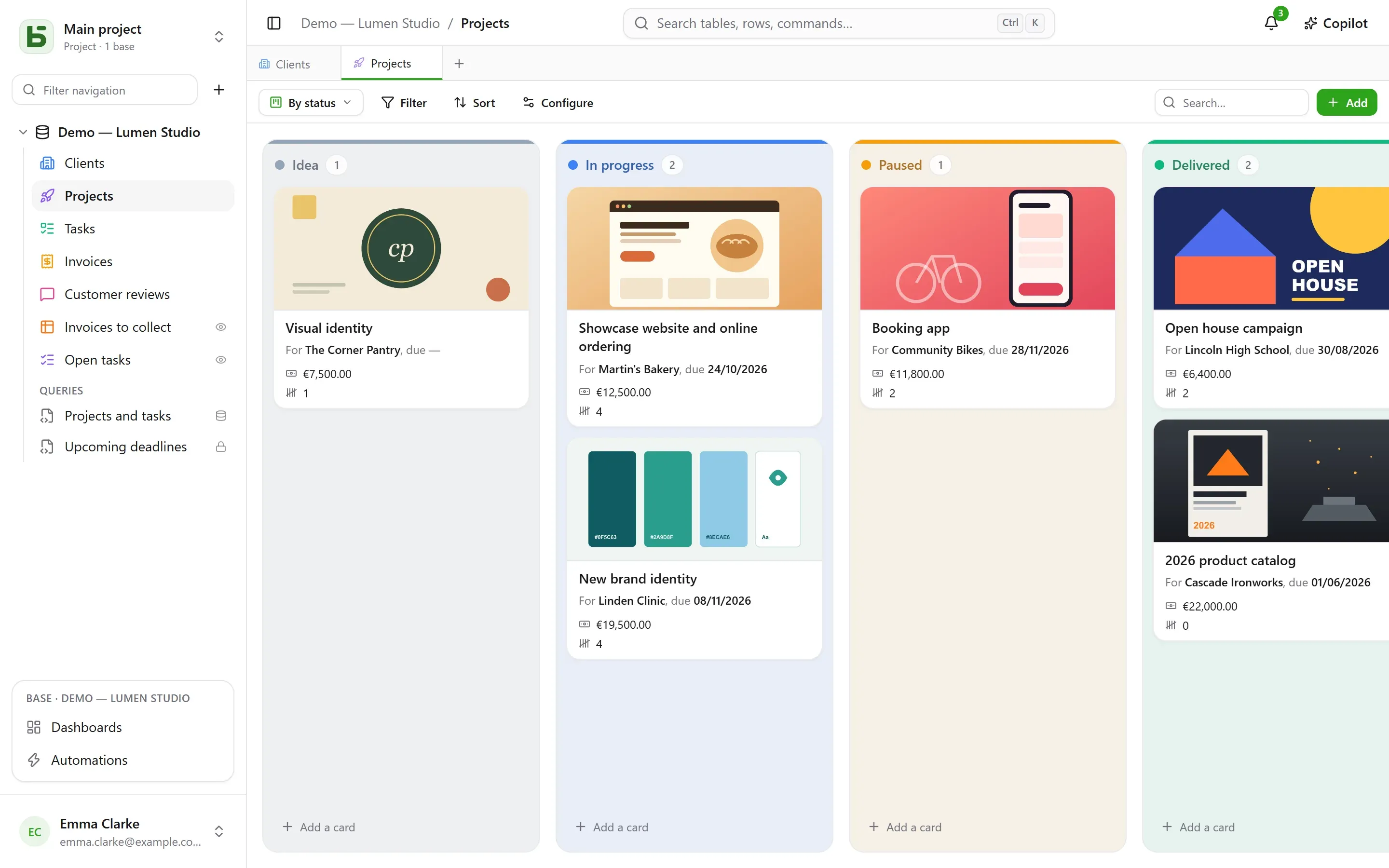
Section titled “4. Add a view”The view selector, to the left of “Filter”, offers “All rows” and then your views. Create a kanban grouped by “Statut”: dragging a card from one column to another updates the row.
5. Share a form
Section titled “5. Share a form”Create a Form view, check the questions, then Share: choose “Public” and copy the link. Each response adds a row to the table, without giving the respondent any permission. Details in Shared forms.
6. Read in SQL
Section titled “6. Read in SQL”The base’s ⋯ menu → SQL query: your tables are there, under their real names.
SELECT nom, statut, montantFROM b_t4z56fq_ventes.opportunitesWHERE statut = 'gagne'ORDER BY montant DESC;Save files it under the tables, in the “Queries” section — for you, or for the whole base — and ⋯ → Create SQL view… turns it into a real PostgreSQL view, filed among the tables. Everyone reads them with their own permissions. See SQL queries and views.
It is the same from psql or your BI tool. See Direct SQL.
basedb is open-source software by Eodia, an AI-native software studio.